
How to Install LM Studio and Run Gemma 4 Locally for Private LLM Use
Why Local LLMs Matter (Privacy & Control)
Having peace of mind that you are the one in control of your data is really a liberating feeling.
And one of the most freeing aspects of running your own LLM locally is that the data never leaves your computer. This can give you peace of mind knowing that your data is yours for evaluation, and this is especially critical for sensitive information.
Another benefit to running your own LLM is the ability to use it without an internet connection. I have local models on my main pc, laptop, and phone. Just in case I ever need to ask a question I just might not know the answer to.
Are they the best running models? No. But we as consumers don’t have the capability to run the frontier models the big companies run.
Fortunately, there are advancements in AI every single day. And, if you are keeping up with the trends then you can spot some really capable local models that perform a variety of different tasks very well.
One model I have been specifically been using is the new Gemma4 model from Google. It’s lightweight enough to fit on most modern hardware is capable of thinking, vision, and tool calling.
What does it take to run a LLM Locally?
Running a LLM on your local hardware is not as far out there as you may think. As I was saying above, each day they are making models that can run on consumer grade hardware.
What was once a dream, can now become a reality within a few minutes. And best of all, it can all run on a device that you already own. That device could be a phone, laptop, or your desktop computer. I personally use my desktop for most of my local LLM processing.
One important thing to note is the model file size it’s self and the number of parameters the model has. You can think of the parameters as essentially the size of its brain.
And, for the most part you can think bigger is better but that is not always the case as seen when comparing some newer models to older ones.
Some model providers like Googles Gemma4 have multiple models to choose from. These models can process text, vision, and audio, and are very capable reasoners with thinking modes. They are great for agentic workflows, coding, and learning LLMs.
-
Gemma 4 E2B IT This is the smallest model in the Gemma4 lineup. Which is a 2 billion parameter model. (Great for your phone/laptop)
-
Gemma 4 E4B IT Next up with the 4 billion parameter model. This model is what I use as a daily driver for a lot of autonomous tasks. Fast, efficient, and reliable. (Laptops/Desktops/Larger phones)
-
Gemma 4 26B A4B IT Now for some of the bigger models, the 26 billion parameter model with 4 billion active. (Desktop Computers or Dedicated Hardware)
-
Gemma 4 31B IT The biggest model in the lineup coming in at 31 billion parameters. This is model is comparable to some of the big enterprise models like its dad Gemini. (Desktop Computers or Dedicated Hardware)
For a full list of Googles released models check them out at https://huggingface.co/collections/google/gemma-4
Which model you choose to run really depends on a variety of different factors from the hardware you have to the task you want to accomplish.
Let’s look at my system specs and a few LLMs I use for various tasks. This way you can get an idea of what you might be able to run for your local hardware.
The Setup: Getting Your Hardware & Tools Ready
Before we get you set up, let’s look at what a typical setup looks like. Here is my current setup and software stack for utilizing an LLM on my everyday driver desktop computer.
My Hardware Setup (desktop computer):
- CPU: 12th Gen Intel© Core™ i5-12600K
- Graphics Card: NVIDIA GeForce RTX 3060 12GB
- RAM: 64GB DDR4
- Drive: 256GB NVME w/SSD’s for extra storage.
- OS: Linux Mint Cinnamon (This is just my operating system of choice as of now)
- Software: LM Studio w/models installed (google/gemma-4-e4b, gemma-4-26b-a4b/etc)
By no means do you need the same system as mine, remember I also run LLM’s on my phone and laptop. The most important piece of the puzzle is VRAM. You are going to want enough VRAM to load the LLM into your video card memory.
One of the neat features about LM Studio is the ability to choose how many layers to offload to your GPU as well as let you pick the Context Length, temperature , and a bunch of other advanced settings.
This can help you fit larger models on your hardware and the expense of speed. Not enough GPU layers activated and you will notice slower tokens per second getting generated.
For example; on my setup I can load the Gemma 4 26B A4B IT model but it’s really not fast enough for a daily driver. I am pushing approximately 12 tokens/sec. However, running models like the Gemma 4 E4B IT are running at 20 tokens/sec.
So a good comfortable level between speed and size for me are usually 8b - 14b models, for anything more than that I would need an additional video card to run comfortably.
Take a look at your system specs and see what models you can run with your current hardware. Sitting at around 8GB+ is good to start of running some of the smaller 2B model with a smooth experience.
If you are confused with which models will run then rest assured because another amazing feature from LM Studio is that it will only recommend to you models that can run on your hardware.
Installing LM Studio and Running Gemma 4
Step-by-Step:
- Head over to https://lmstudio.ai/ and download LM Studio for your device.
- Search: Open the app and head to the AI Model Search tab (the magnifying glass icon). Type in “Gemma 4 2B”
- Select: Look for the version optimized by the community, such as
gemma-4-2b-it-GGUF. Click Download.
Note: The “it” stands for Instruction Tuned, which is what you want for a chat-like experience.
- Load: Once the download finishes, navigate to the AI Chat tab. Select your new model from the dropdown menu at the top.
- Chat: Wait a few seconds for the model to load into your memory (RAM), and start typing!
- That’s it! You are now running a Large Language Model entirely offline. No subscriptions, no data tracking, your own data.
Your Local AI Journey Begins Now: Beyond the Setup
Congrats! If you made it this far you most likely got the hard part done, the install.
Now you can get to the fun parts. Asking your LLM to do the hard stuff for you. Try one of these simple tasks to get started:
-
Create a summary from a personal article you are drafting. Just copy/paste into LM Studio chat and get your summary within seconds. For even more control on the outputs, you can adjust the main system prompt on the right sidebar for the chat. This is the message/instructions the LLM see’s before everything else.
-
Create SEO ready keyword tags from your post content. This is one that I use for my blog posts. It will the top 5 keywords for frontmatter format Just say this in chat
I need you to create a list of SEO friendly keyword tags that I can use for my blog post. Give me the list in .md frontmatter format for astro of the top performing SEO keywords to use. Output the top 5 tags.

Example: tags: [ai, llm, tutorial]

Post:
your_content- Analyze an image using it’s vision capabilities. If using the Gemma4 model you can take advantage of it’s vision ability to analyze photos for you. Click the + button to attach a photo or simply drop it in chat along with your prompt.
Raising the Bar Using Automation
If you are anything like me, you are probably wanting to see what you can really do by hooking it up with other local applications like n8n or VS Code.
My first application I hooked up was n8n because I love automation and was already diving into it.
Inside n8n you can find a node called the AI Agent which need’s an LLM to process information and hand that data or task to other nodes. You can use the OpenAI LLM node to connect your local LLM running in LM Studio.
I will write up a guide on how to do this soon, but essentially you turn on the local server in LM Studio, load the model, and point n8n’s LLM node to the OpenAI compatible endpoints.
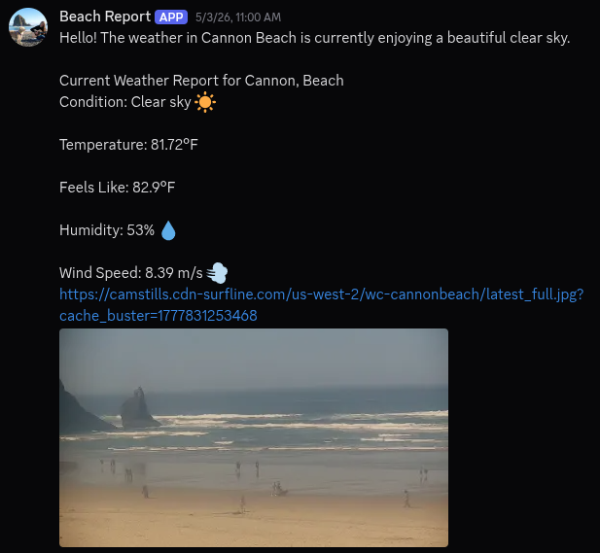
One fun automation workflow I made when I first started was the “Beach Report Bot”. Each morning at 10am the AI Agent will use the Open Weather Map tool which uses an API to pull the current weather and the LLM will format a structured post, applies a newly fetched beach cam image to the message, then post it on my discord channel. This all happens in seconds, each morning.
In the near future I will write up more posts detailing more of my workflows and setups and I encourage you to do the same! If you can, share your latest project with me on BlueSky.
Until next time!
You know what to do, keep building.
~ Tarlow
Related Posts
Taking Control - How Gemma 4 Powers My Local AI Ecosystem We are seeing a big shift in the AI landscape. As major enterprise companies release new models, they are simultaneously tightening the leash, either completely restricting access to the models or…